
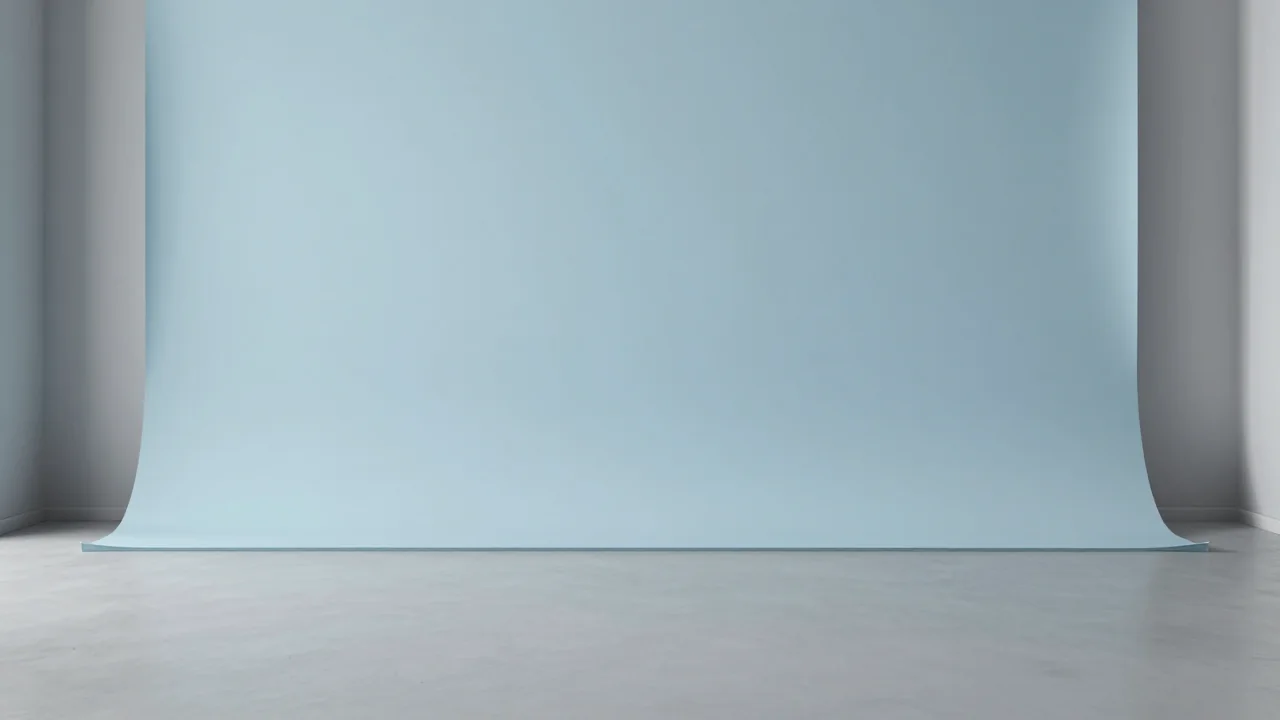
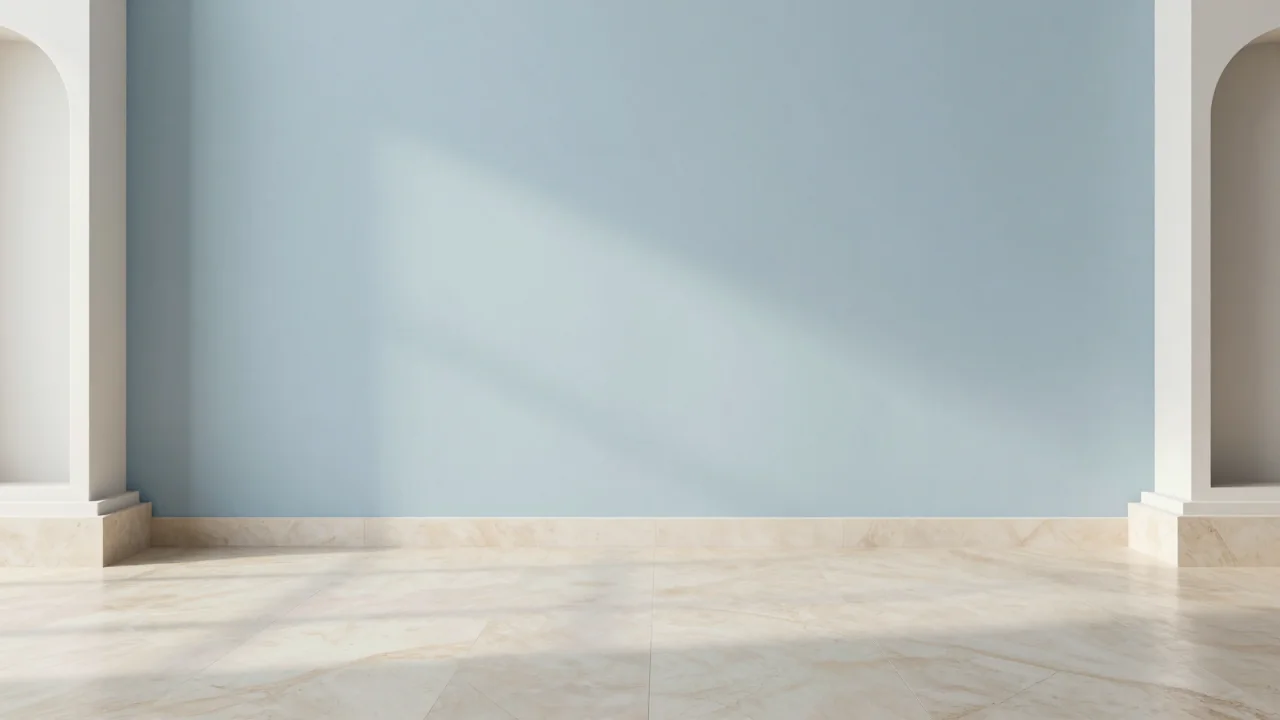
A calm studio with a pale blue backdrop, soft side lighting, and a clear area behind the subject.
Your footage. A different scene.
Green Screen Remover for Video
Remove the green screen from your video and replace it with a background image you choose. Keep the focus on your subject.
Choose the scene for your next video
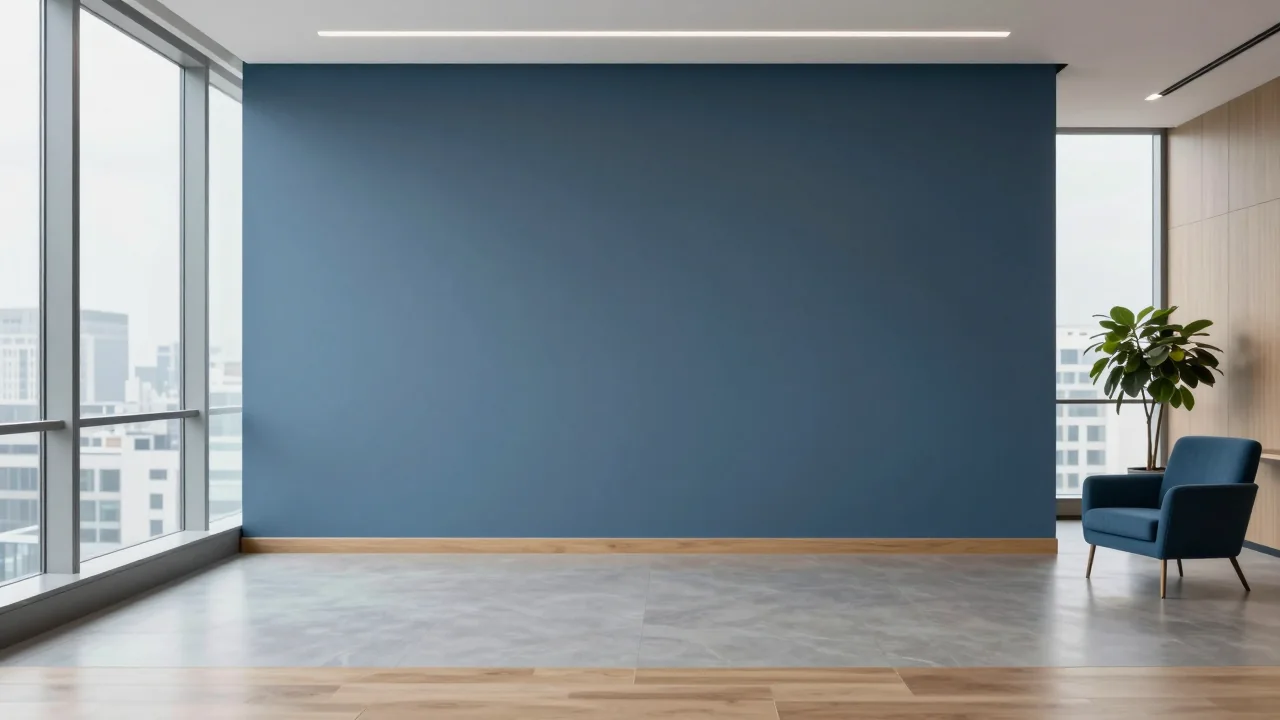
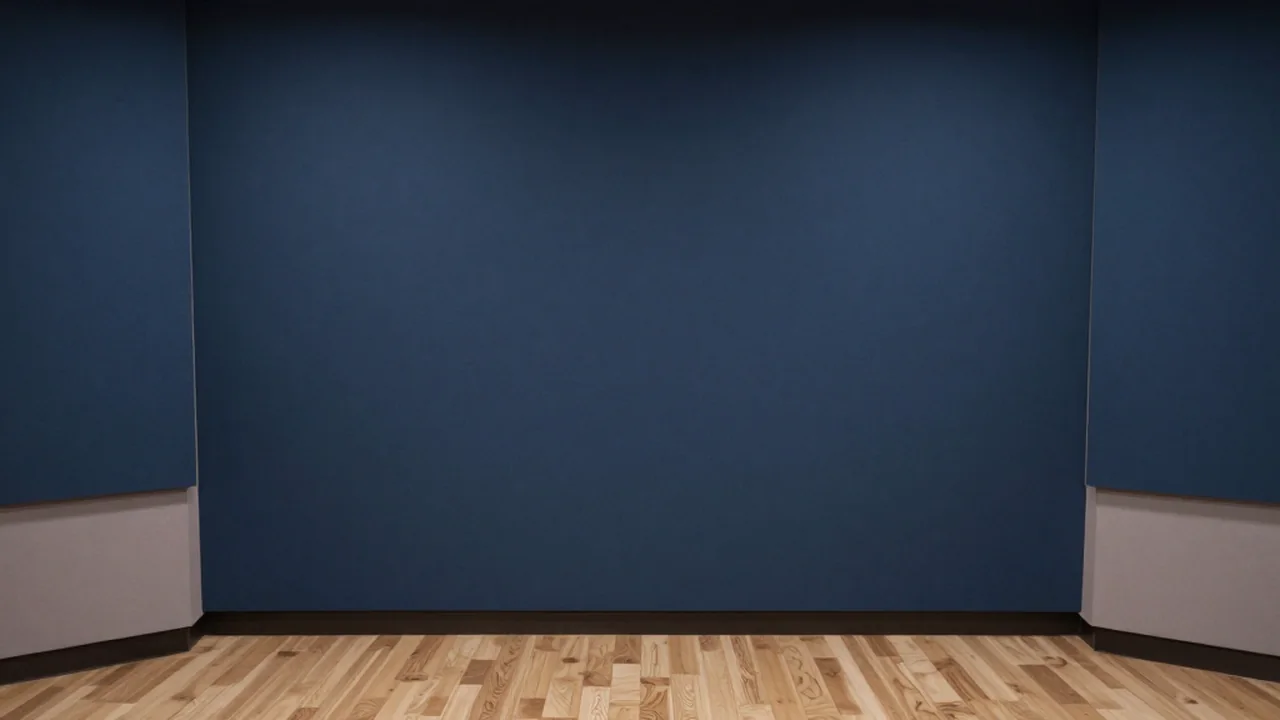
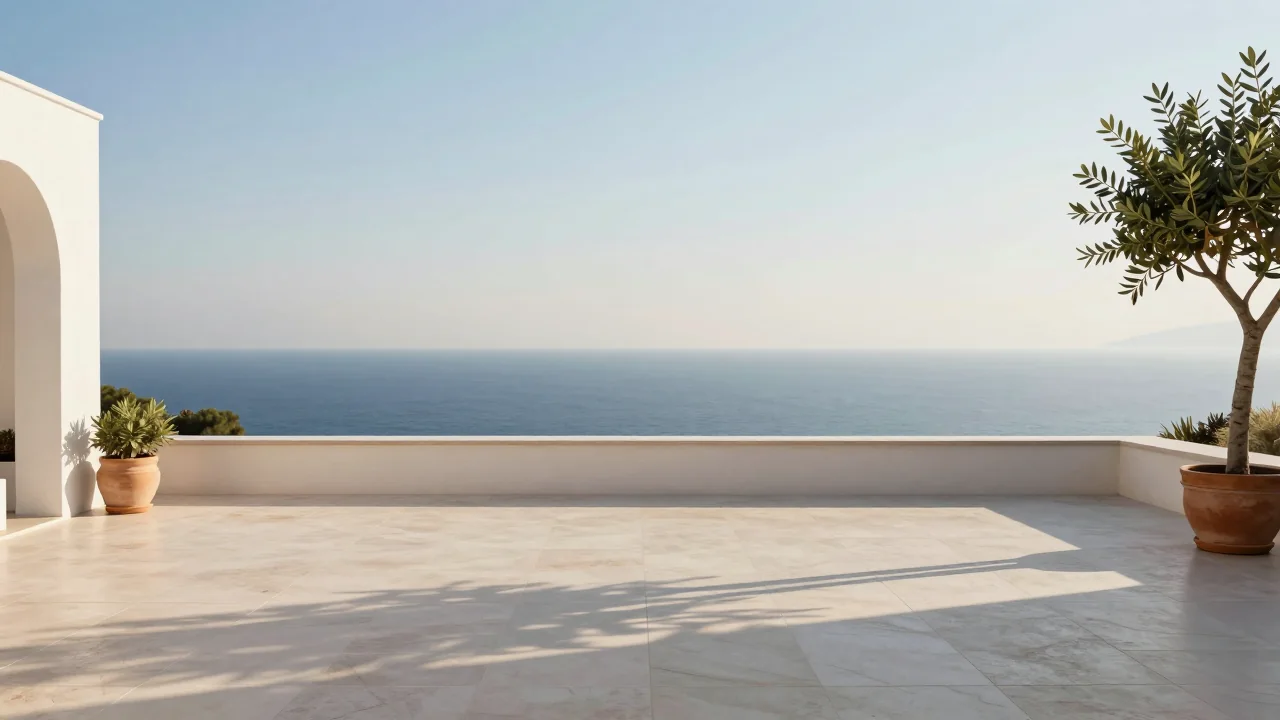
Eight background images you can use with your own footage. Copy a scene brief or open the editor with a backdrop selected.
Clean studio
Modern office
Podcast set
Product showcase
Gaming room
Coastal escape
Fitness studio
Teaching space
Background ideas — these images show replacement scenes, not video-removal results.
From filmed subject to a new setting
Edit moving footage, not just stills
Use a video clip as your source. Replace the scene around a speaker, presenter, or product demonstration without turning it into a static cutout.
A green screen is optional
Subject separation also works with ordinary backgrounds. Use the same editing flow when your next clip was filmed in a room rather than a studio.
Make your own image the backdrop
Use a branded wall, a set photograph, or a campaign image you already have. Supply the replacement scene directly instead of relying on a generated setting.
How to remove a green screen from video
Upload your clip
Open the editor and upload a short video with a clearly visible subject.
Add a new background
Upload your own background image, or choose one of the scene ideas above.
Inspect and download
Process the clip, compare it with the original, and download the result for your next edit.
Put your footage where it belongs

Presentations and lessons
Give a talking-head lesson a consistent setting when the recording space changes between sessions.
Product and client videos
Place a product demonstration in a campaign backdrop supplied by your client or brand.
Social clips and creator sets
Reuse a recognizable backdrop for intros, short updates, and clips filmed away from your usual set.
Before you edit
Can I remove a green screen from a video?
Yes. This editor processes video clips rather than still images. Upload your footage in the editor and add a replacement background image if you want a new setting.
Does the background have to be green?
No. AI subject separation can also work with blue screens and ordinary backgrounds. Clear separation between the subject and the scene generally gives a better result.
Can I use my own background image?
Yes. Upload an image you own or have permission to use. You can also select one of the background ideas on this site.
Will I get a transparent video?
The current workflow downloads a standard MP4. It does not provide a verified transparent alpha-channel export. Use a replacement image when you want a finished scene.
How long can my clip be?
Use a clip up to 10 seconds and 25 MB. The editor checks the uploaded video's duration before processing. Trim longer footage into a short segment first.
What helps with hair and fast movement?
Good lighting, a clear subject, and less motion blur make separation easier. Fine hair, transparent objects, and fast movement can leave imperfect edges; inspect the result before using it.
Can I use the result for client work?
Use footage and background images you own or are authorized to edit. Client or commercial use remains subject to the service terms and the rights attached to your inputs.
Plans for your video projects
Choose a plan for ongoing work or add credits when you need another edit.
Upgrade your plan
Basic
10/month
1,000 credits + 200 credits
20% more credits than pay-as-you-go
(excl. tax)
- Plan benefits
- Up to 100 short video tasks per monthly allowance
- AI video background removal
- Use your own replacement background
- Eight background ideas to start from
- AI video background removal
Pro
20/month
2,000 credits + 600 credits
30% more credits than pay-as-you-go
(excl. tax)
- Plan benefits
- Up to 200 short video tasks per monthly allowance
- AI video background removal
- Use your own replacement background
- Eight background ideas to start from
- AI video background removal
Max
50/month
5,000 credits + 2,500 credits
50% more credits than pay-as-you-go
(excl. tax)
- Plan benefits
- Up to 500 short video tasks per monthly allowance
- AI video background removal
- Use your own replacement background
- Eight background ideas to start from
- AI video background removal
Not ready to subscribe?
Give your next clip a new setting
Bring the footage. Choose the backdrop. Start with a short clip.
Open the video editor